
Labor transparency
Display the AI’s action plan, sources used, reasoning steps, gradually reveal AI's output and clearly mark all changes made.
Key characteristics
Shows what AI is doing, from simple progress cues to step-by-step work.
Exposes direction early with a plan so users can stop bad runs fast.
Keeps a reviewable log for auditing and iteration.
Makes AI-made changes easy to find, jump to, and compare.
About
Labor transparency is foundational to every AI workflow. How well a tool shows AI's work differentiates good and poor AI integration. Transparency makes AI tools trusted, predictable, and auditable, essential qualities for their adoption across digital workflows.
Levels of labor transparency
1. Inform AI is working
AI rarely returns instant results (except for specifically optimized image generators) so users need a clear sign that the system received their input and is working on it.
Common indicators like spinners, pulsing dots, or a simple “AI is working” labels suffices. These cues will still matter in the future even if we achieve instant processing. Small delays will often be kept on purpose so the output feels earned and users don’t treat it like a free, instant reflex.
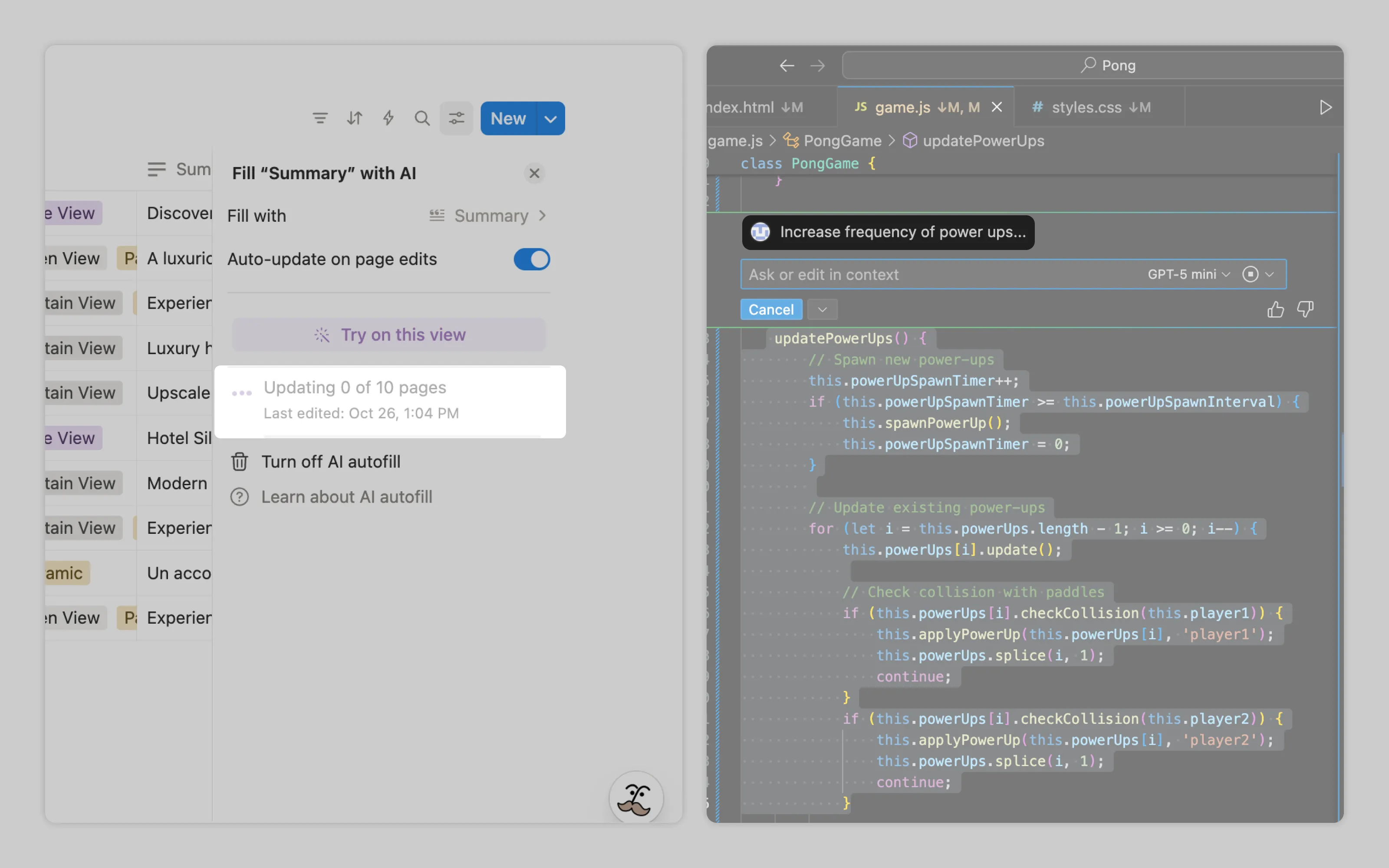
Notion enriches its animation with progress data showing pages remaining. VS Code displays the user's prompt with animated dots to confirm the task is processing.
2. Show what AI will do (provide action plan)
For resource-intensive workflows, AI should outline its high-level steps before starting. This preview lets users verify AI understands the task correctly before using up tokens. For particularly long operations, AI can pause after presenting the plan and wait for approval to proceed.

VS Code Copilot in agent mode starts by writing out its to-do list before executing any tasks.
3. Show what AI does (in real time) and save it
Basic progress indicators aren't enough for complex or high-stakes tasks. Users need to see AI's actual process to validate its logic, especially in agentic workflows or when generating reports that inform critical decisions.
AI workflow steps can be divided into three components:
Context viewed: pages, files, and websites AI referenced, sometimes down to specific lines analyzed
Stream of thought: AI's reasoning process as it works through problems
Actions: what AI created, modified, or executed (opened programs, added pages, edited tables)
Make sure those workflow steps are saved. For products supporting iteration or requiring audit trails, preserve these workflow steps. Users can review them by scrolling through chat history or selecting specific outputs to see how they were generated.
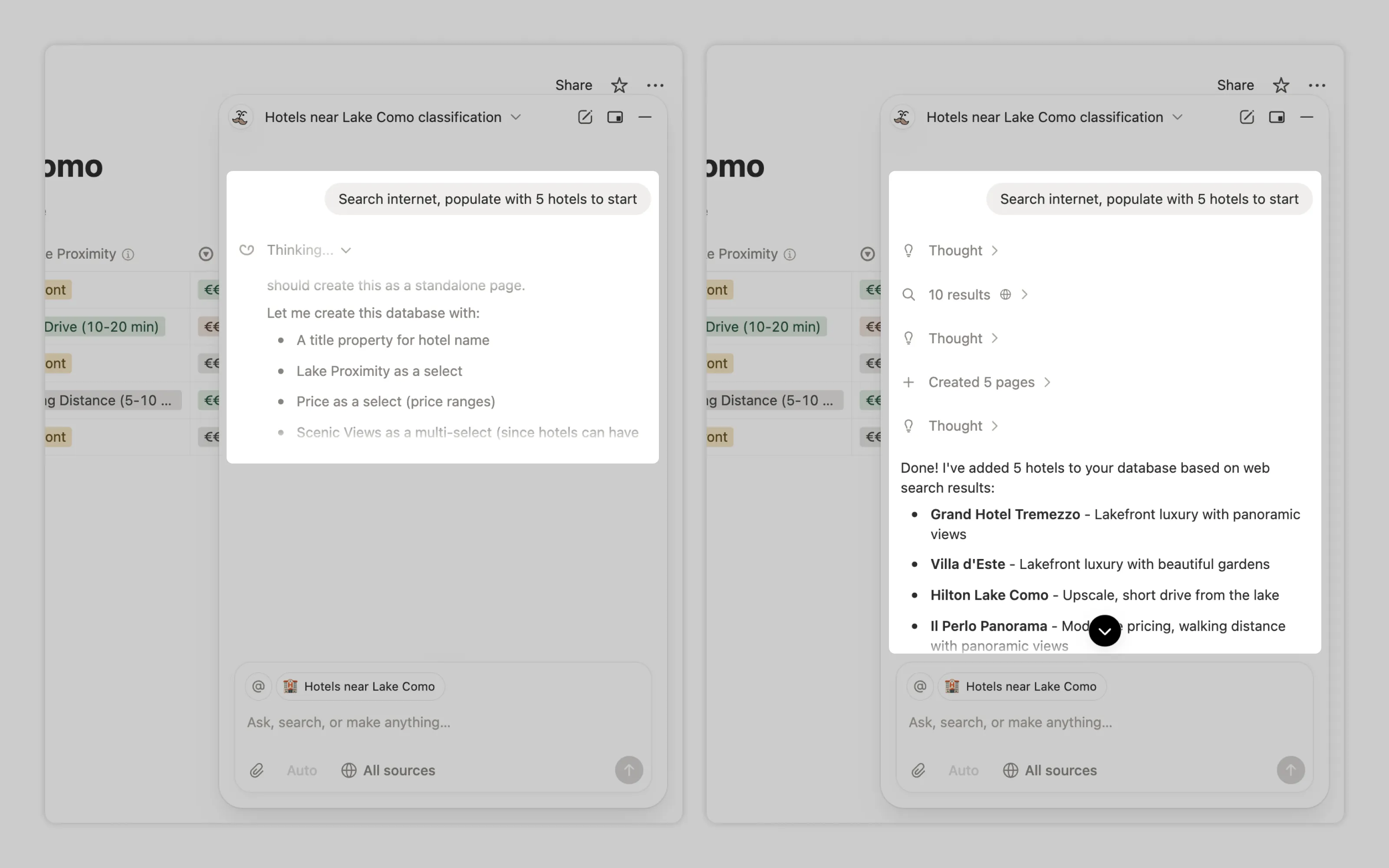
Notion neatly displays each workflow step in real time, then collapses completed steps into accordions users can expand later for review.
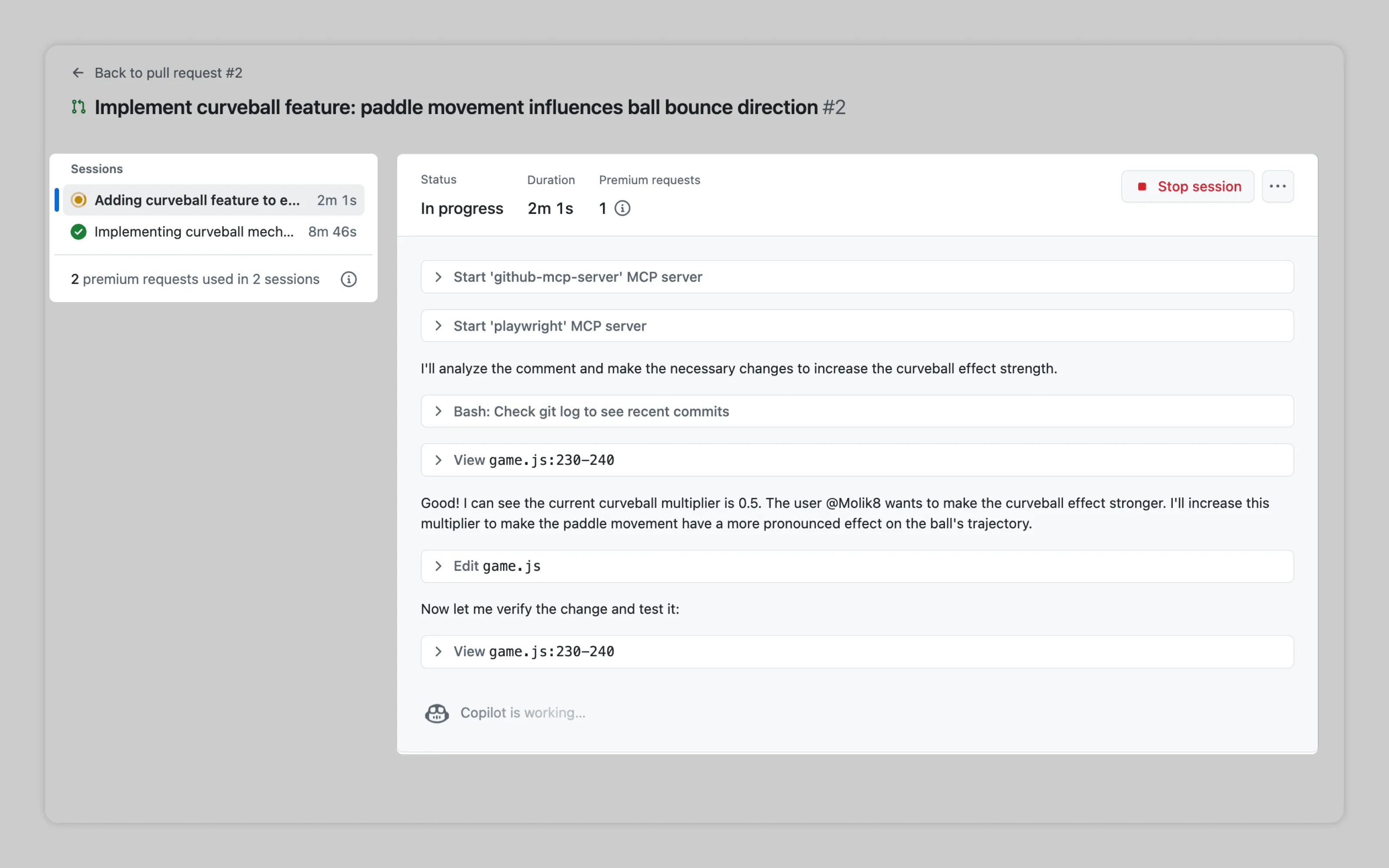
GitHub provides dedicated "mission control" space for browsing every step AI took on delegated tasks. This separate interface becomes essential for managing parallel agentic workflows. See: Processing management for more information
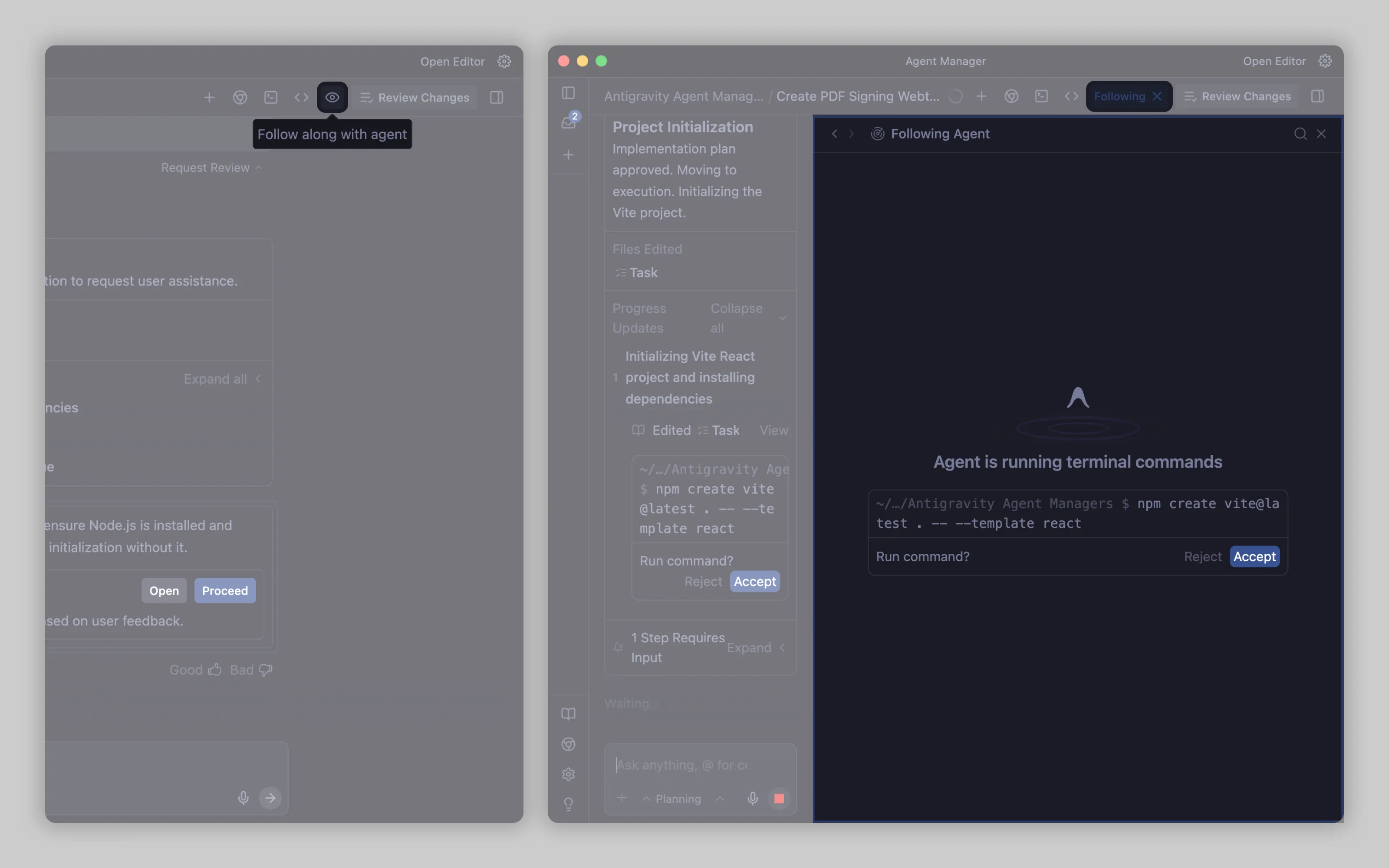
Antigravity offers an option to "Follow along" with delegated tasks done by AI agents. This showcases where the AI is in the document and what it's doing.
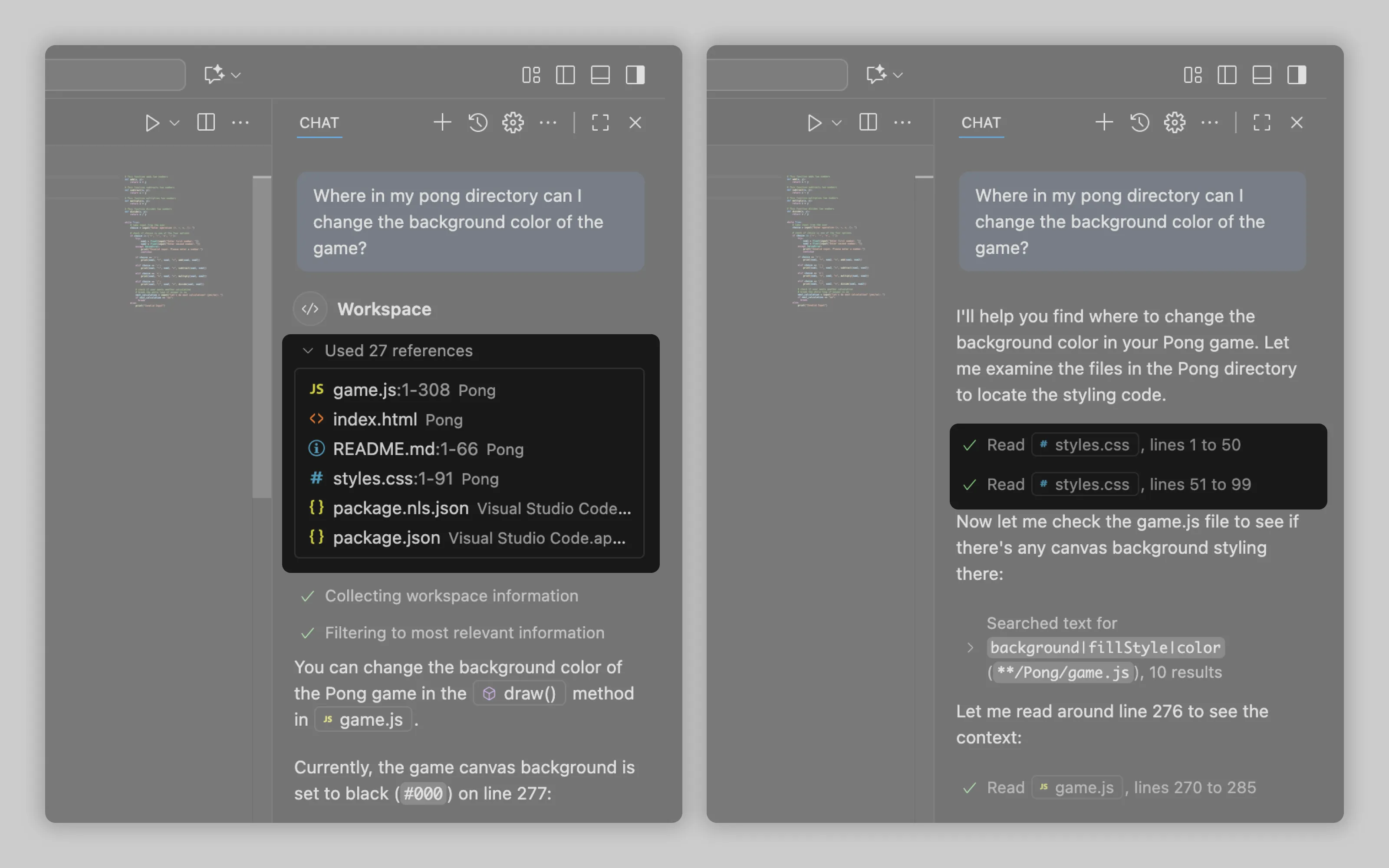
In VS Code, Copilot displays steps differently depending on AI mode. In ask mode, it lists all used references in one section. Agent mode often does not list any references right away. Due to its nature of "working through a problem," it lists files when they are accessed.
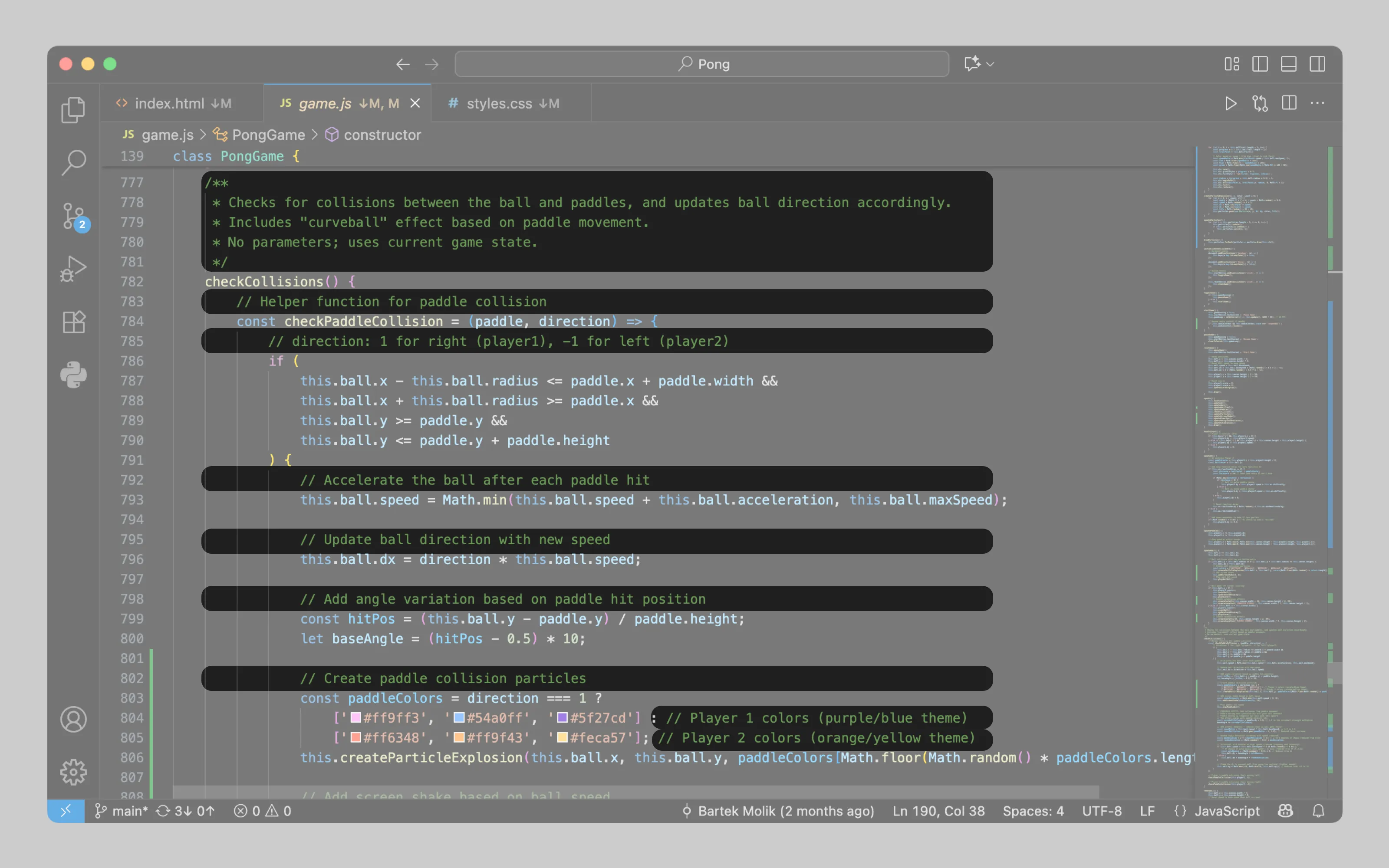
VSCode Copilot comments generated code inline, explaining what was added and why during its workflow.
4. Gradually reveal AI's output and clearly mark it
AI output should appear gradually, not after everything completes. This enables users to verify AI is on track and to stop generation if it goes wrong. Streaming output also makes wait times feel shorter since users engage with partial results instead of staring at a spinner.
Once AI completes its work, every change outside the chat interface needs clear marking so users can exactly see what AI changed within their work. This marking can be done in two ways:
Display each created or modified item among workflow steps (see above)
Bonus points if changes are shown as a clickable link that jumps directly to the change. This creates an audit trail within the workflow itself, often sufficient for transparency needs without additional change-tracking interfaces.

Notion's agentic workflow logs each step and change in chat as clickable entries that jump directly to edited locations.
Mark AI output inside the work
If changes are dense, or users need to compare before and after then just listing all changes isn't enough. The UI should visually highlight changes right within users work and separate replaced and new content. This marking main goal is to make easy output management possible.
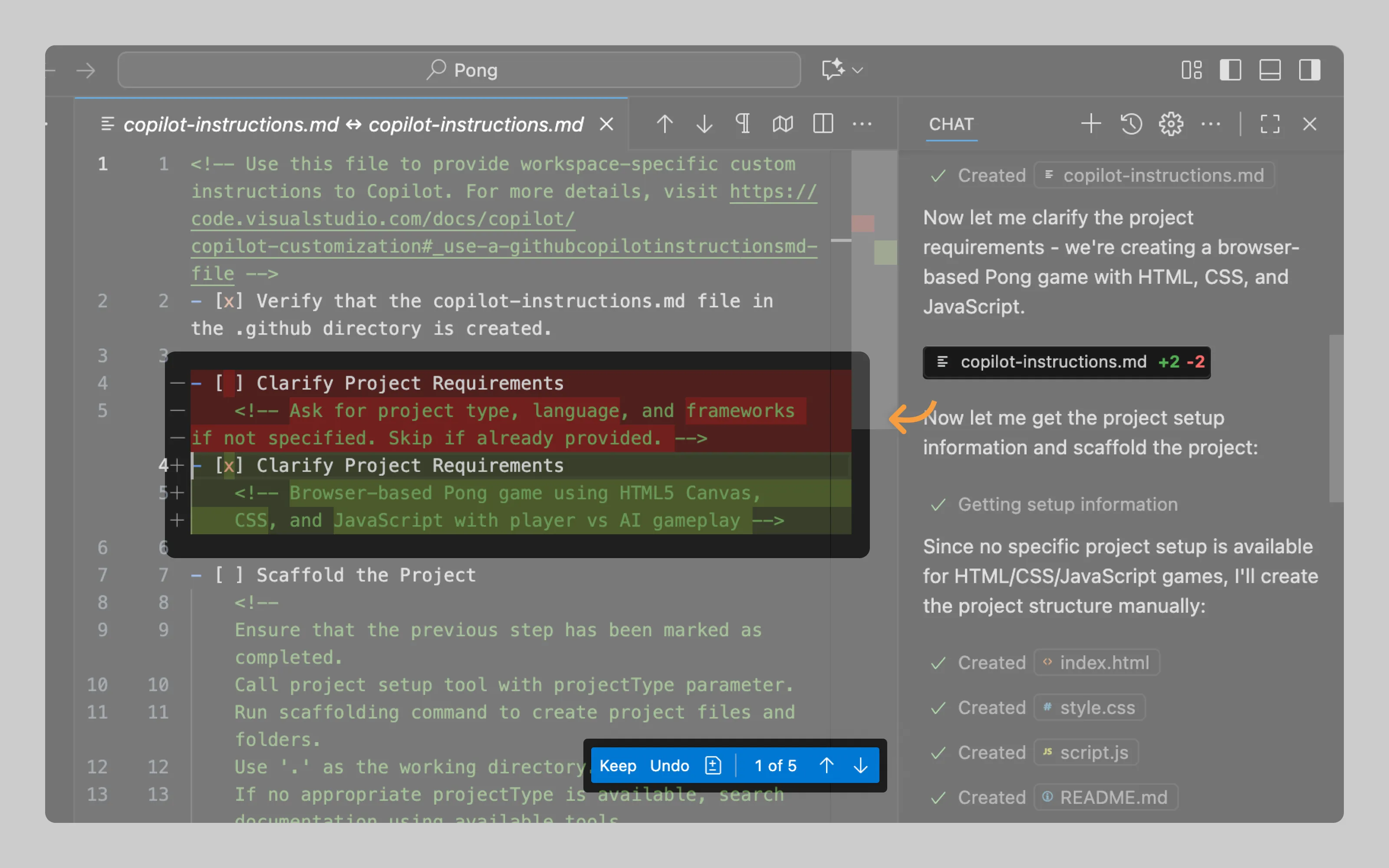
VSCode Copilot diligently records changes down to individual characters alongside workflow steps. Additionally it marks before and after changes in red and green directly within users code. This lets users compare everything to decide if the changes should be kept or rejected. See: Output management
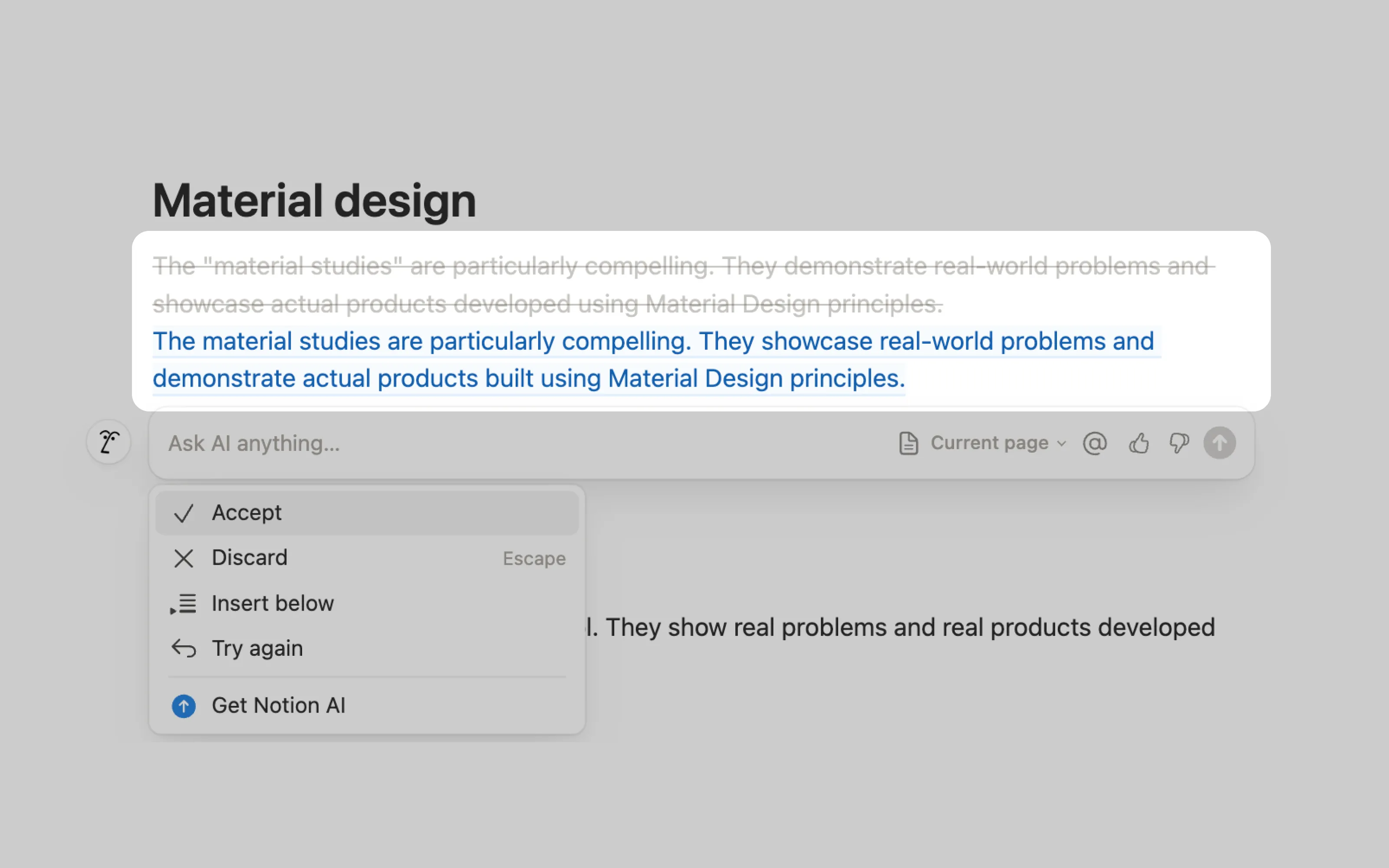
For single paragraph edits, Notion strikes through original text and displays the new version in blue.
Or email us at hello@studiolaminar.com