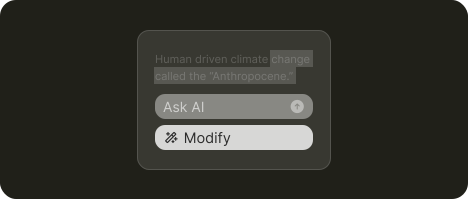
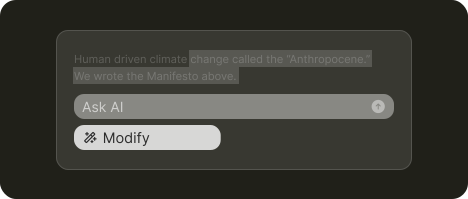
Modify
Refine existing content by changing length, tone, style, or adding/removing elements
Use cases
Simple edits like make shorter / longer, simplify, change tone, improve, fix spelling
Turn notes into a structured draft
Apply consistent style across a section (match terminology, voice, formatting)
About
Modify is the umbrella term for actions users can trigger to change their work, written or visual.
What's needed
Quick action ➞ | Open input ➞
1. Provide quick actions first
If people keep using the same AI edits in a tool, make those tasks available as quick actions. Treat them like normal menu items users can learn and repeat.
For anything that doesn’t fit a preset, provide an open text input so users can describe the task in their own words.

Notion does both. In its AI edit menu, users can type a request or pick a quick action from the list.
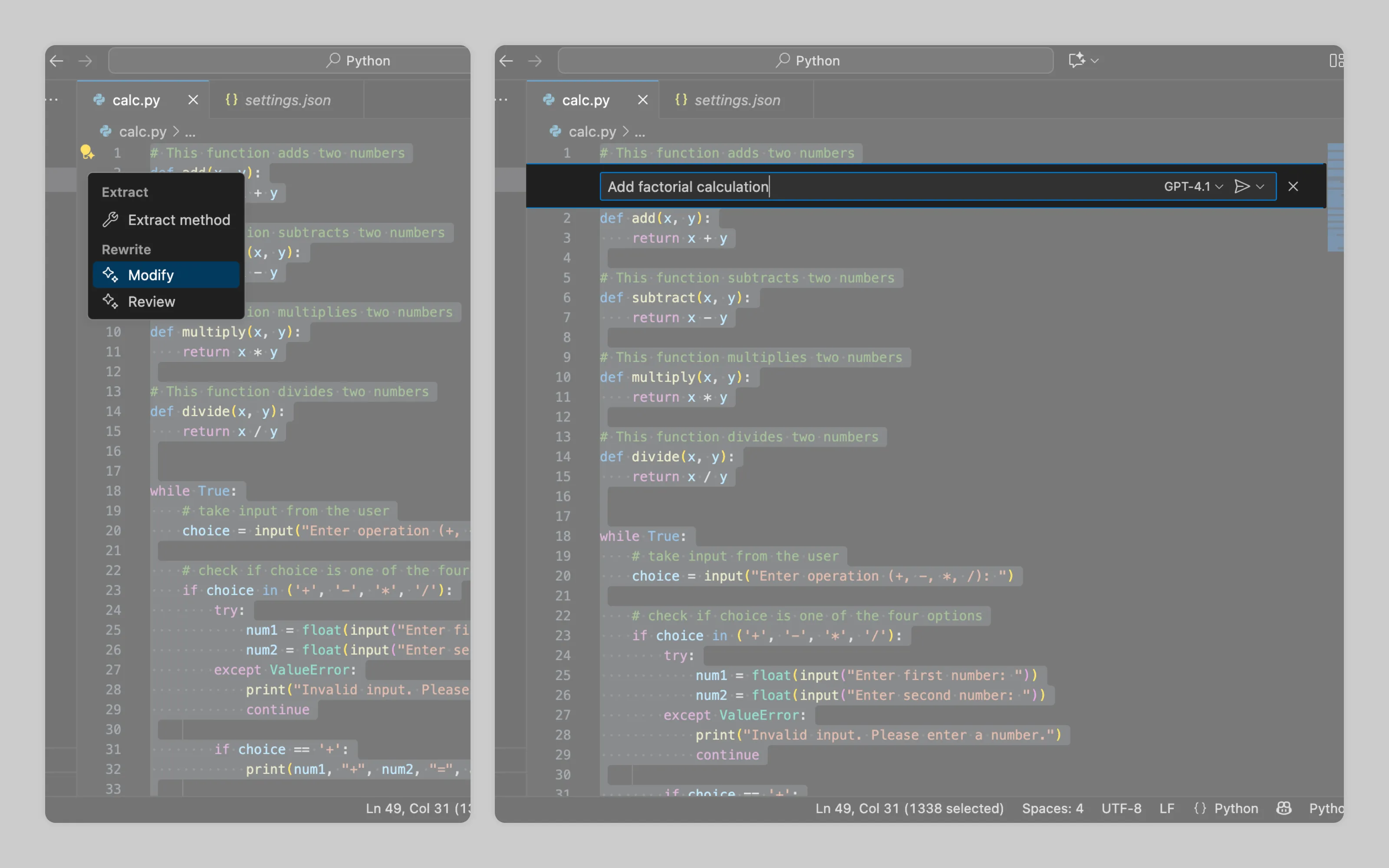
At VSCode after choosing Modify user i asked for a typed instruction and shows no quick actions.
Context pointing ➞
2. Let users specify what AI should work on
Users often want to change only part of their work. Let them highlight the target section using standard text selection or other means.
The highlight can trigger a floating menu appearing nearby
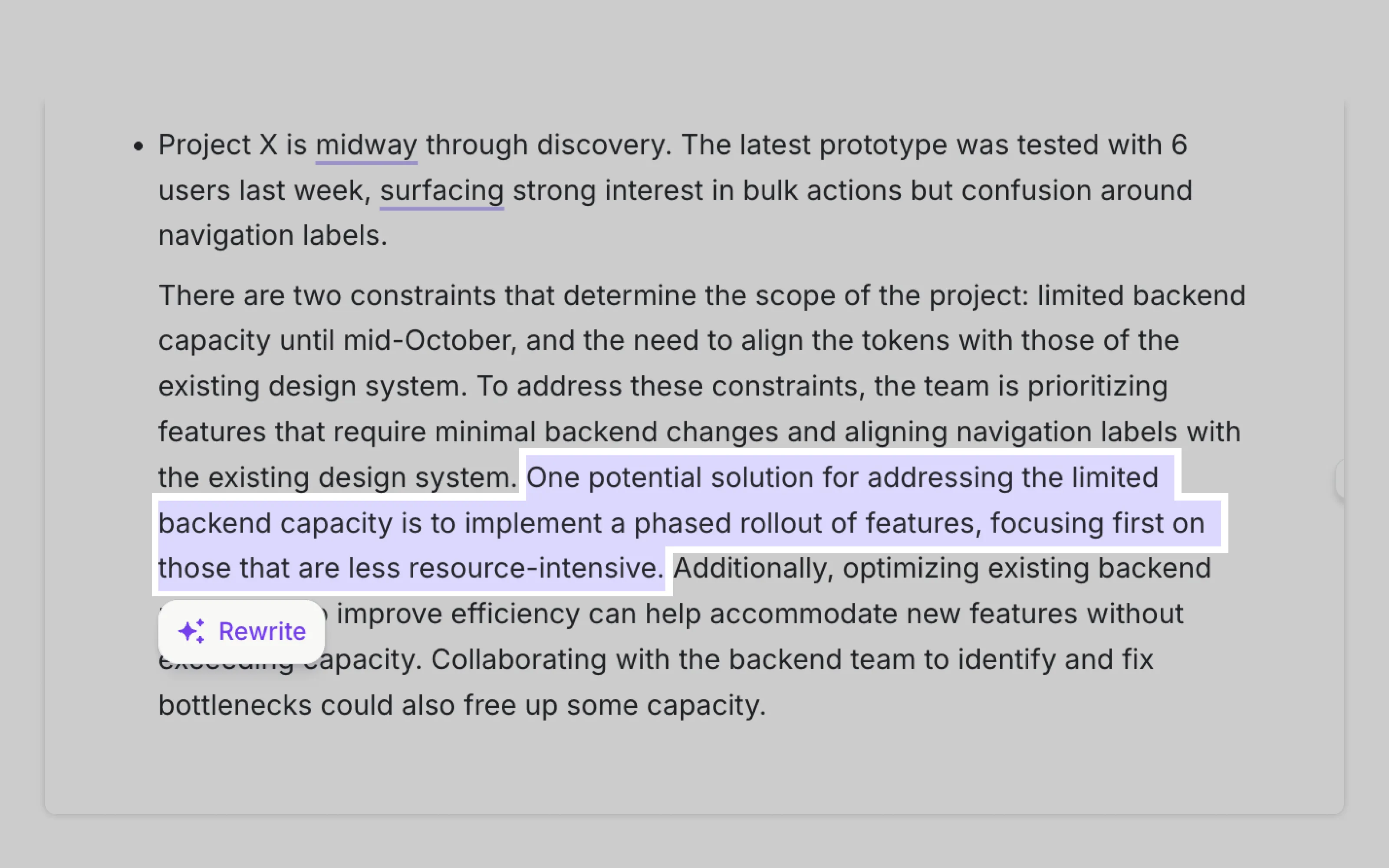
Wordtune modifies only the highlighted text.
Labor transparency ➞
3. Show that AI is working
Edits can take a moment, especially when multiple parts are modified (see Review benefit)). Always give a clear cue that the system received the request and is processing it.
Output management ➞
4. Enable user to revert changes, regenerate output or pick variant
Once the modification is finished, the system should:
Point out exactly where changes were made. Show the before and after so users can compare. If multiple modifications are performed allow to navigate between changes (see Review benefit)
Let users accept or discard the edits. If there are multiple options, let them pick one variant.
Offer a regenerate option so they can explore different results
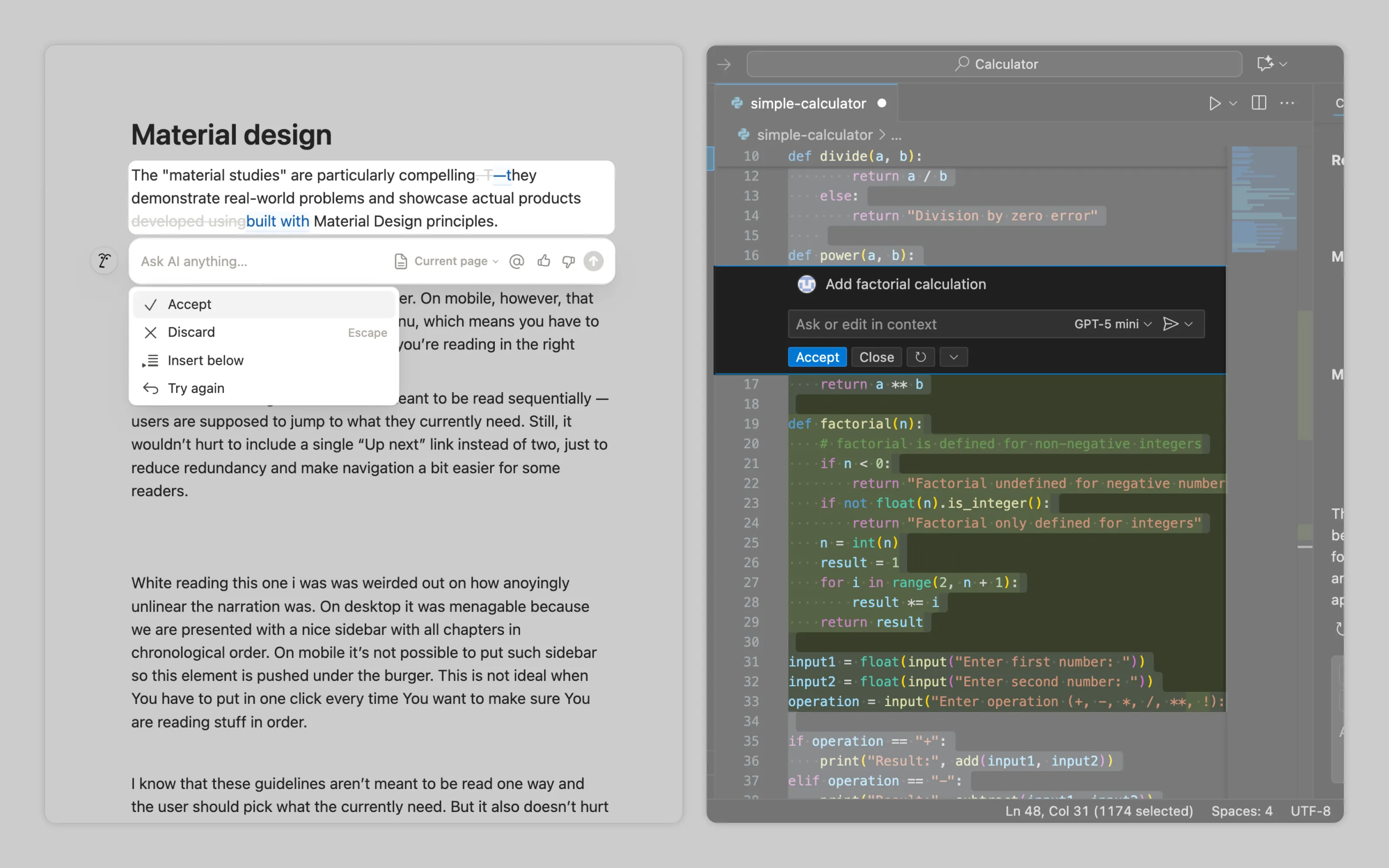
Notion marks edits by crossing out the original text and showing the new version in blue. VS Code highlights the old code in red and the new code in green. Both let users accept or discard changes, and both include a regenerate option.
Or email us at hello@studiolaminar.com