Suggest in context
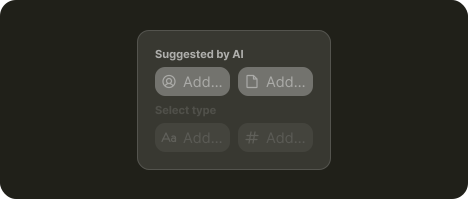
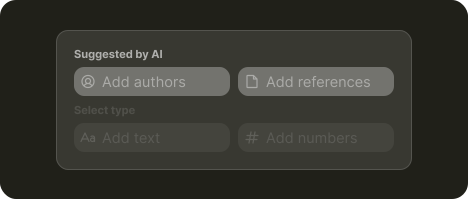
Smart suggestions offering relevant options or AI actions
Use cases
Suggestions give users first easy steps and help them learn what the AI can do
Well-suggested actions provide shortcuts that save users time on manual searches
Suggestions can be used to show relevant features users didn't know existed, increasing product adoption
About
Relevant suggestions have been a UX cornerstone for years, helping users complete tasks faster and with less friction. Now AI can make them more impactful in two ways:
AI is good at spotting patterns. It can read what the user is doing and guess intent more accurately, so the suggested options are closer to what they actually need
AI can generate suggestions on the fly. Instead of picking from a fixed list, it can propose bespoke actions like “search for X” or “add a subtask with a summary”
Suggested actions works great as:
Starting points
Blank input can feel intimidating, especially when AI can do “anything.” Suggestions give users a first step and help them learn what AI can do.
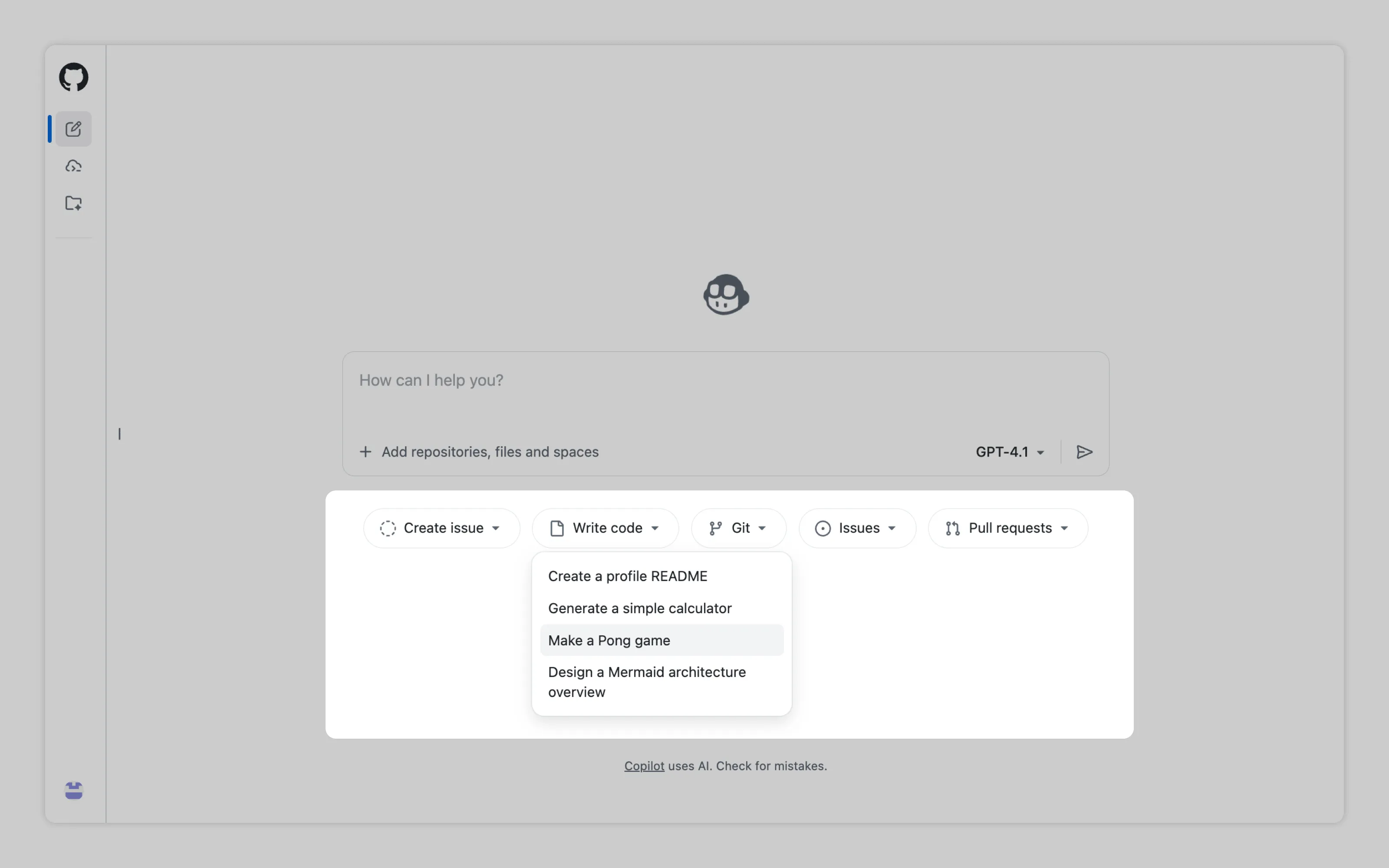
GitHub Copilot reads the codebase and offers actions that fit that project, so users can quickly see value in AI assistant
Shortcuts
When the system understands the user’s goal, suggestions save time by putting the right info or action one click away.

Notion frontloads most likely actions up front based on selected text
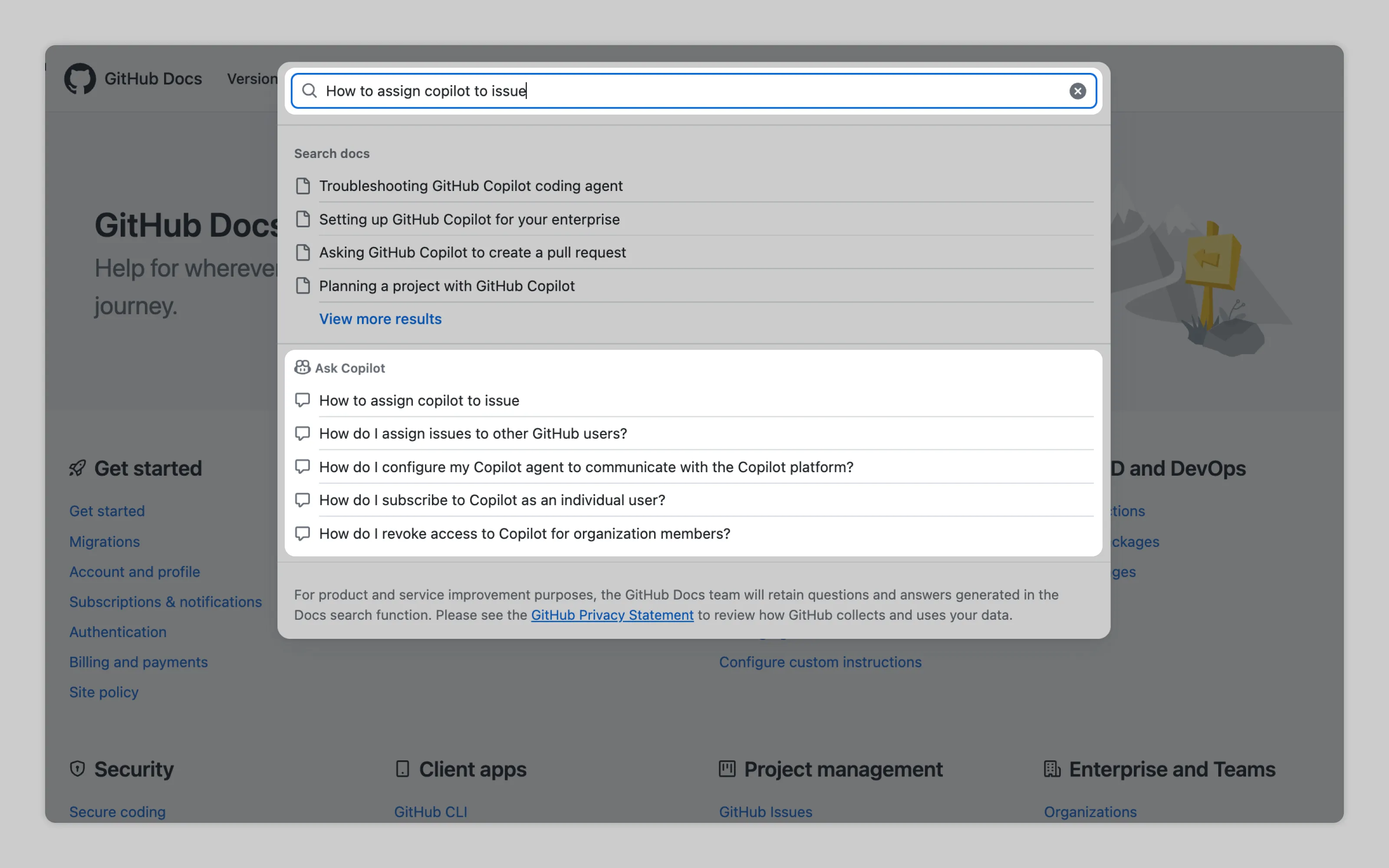
GitHub Docs suggests Copilot questions based on what user is searching for
What's needed
Context pointing ➞
1. Get the context right
For dynamic actions to be useful, dialing in user context and intent is key. This can be done by analyzing:
User data: what the product already knows about the user, like role, plan, and onboarding choices
Example: User picked “Student” during onboarding. The AI generates tailored templates. A “Professional” gets advanced options and fewer prompts.Workspace artifacts: what the user is working on, including files, comments, and documentation.
Example: User opens a file called “Compliance report.” The AI suggests actions like “List relevant regulators,” or “Draft a compliance summary.”Interaction history: recent edits, commonly used components, and the user’s usual workflow
Example: User often exports tables as CSV and then shares them. After they export a table, the AI suggests “Draft message to share this report”
Presence ➞
2. Keep suggestions subtle
AI-powered suggestions are a passive feature. Users don't actively ask the AI to do something. Instead, the AI proposes helpful actions while users stay focused on their task.
To avoid breaking users flow, suggestions should sit next to the non-suggested options the user already sees. Alternatively there could be a dedicated place to showcase suggested actions, usually near the button that opens AI chat.

Notion suggests the most commonly used column types. While this feature may not be AI-powered, there's potential for AI to analyze table content and user history to deliver better recommendations.
Quick actions ➞ | Templates ➞
3. If proposing AI functionalities, one-click actions are the best ones
Suggested options should be fast. When the suggestion is AI, it works best as a one-click action that produces a result.
If the action requires input, populate it with defaults. For example, if a quick action fills an AI chat with a template, ensure hitting enter immediately (without any additions) yields valid results.
Presence ➞ | Output management ➞
4. Enable user to discard changes
Users also need an easy way out. If they try a suggested AI action and don’t like the outcome, they should be able to back out immediately. At a minimum, standard undo (Ctrl+Z) must work.
Keep the user in context too. If a suggestion opens chat, open it as an overlay so their work stays visible. Don’t switch to a center stage AI-only view unless the user chose that.
Or email us at hello@studiolaminar.com