
Chat workflow
Conversation-based AI collaboration with dedicated workspaces for created artifacts, plus backtracking and branching to explore multiple approaches
Key characteristics
Each message builds on previous context, creating collaborative dialogue
Automatically captures relevant information from workspace, selections
Enables backtracking to previous states and branching into alternative paths for iterative refinement
About
Chat is basically a chain of open inputs where each prompt builds on previous ones. It lets users have a conversation with AI, either to work through several tasks or collaborate on a single complex task that takes multiple "back-and-forths" to refine.
How to support chat workflows
1. Lower input interaction cost
Chat workflows rely mainly on writing messages through open inputs, which can be simplified in multiple ways making it easier to start conversations and communicate intent clearly. Read more in Open input about:
Suggesting ready-made actions
Providing starting points and templates
Capturing context (more on that below)
Providing parameters
Simplifying writing itself
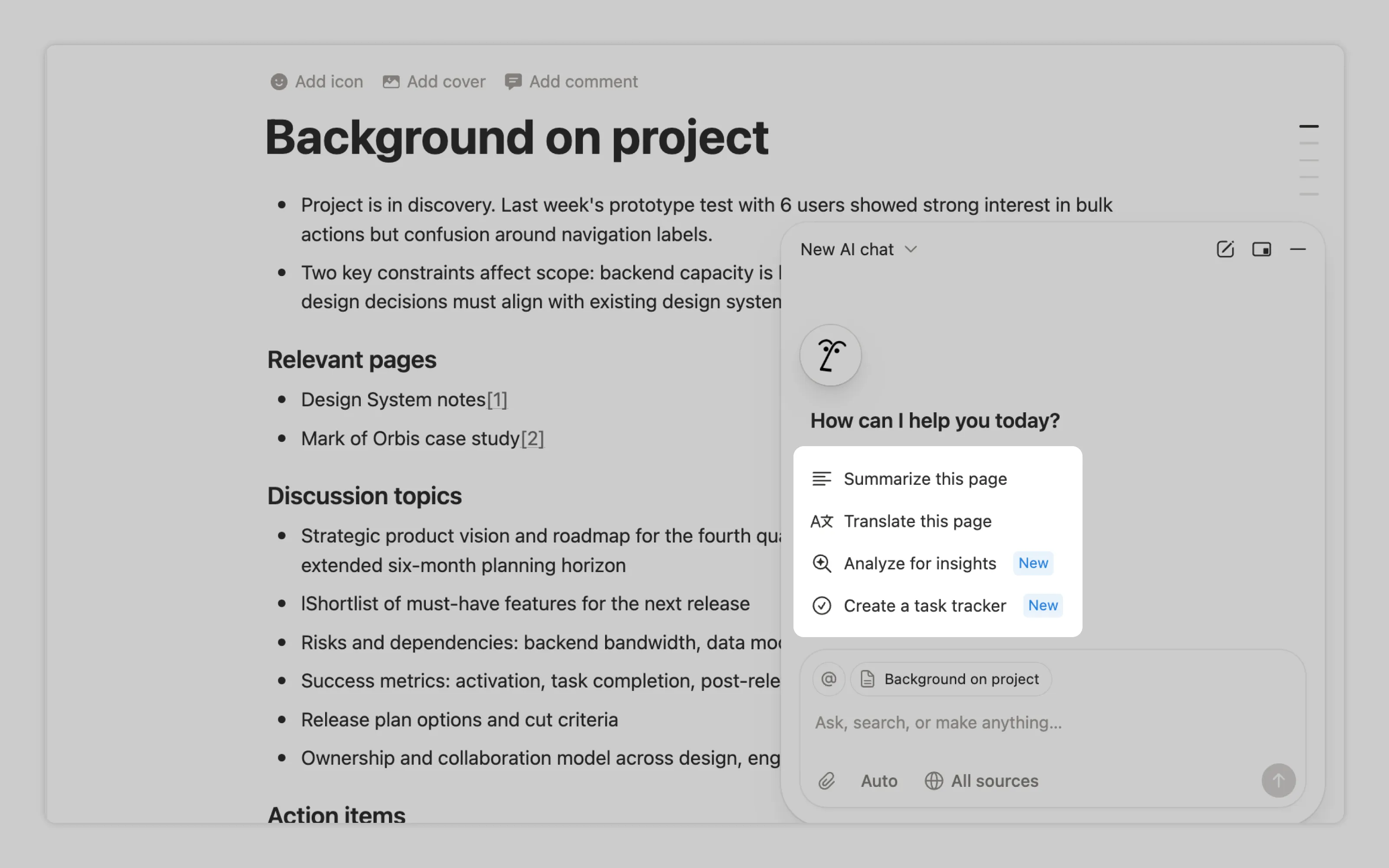
Notion suggests common tasks every time the user starts a new chat.
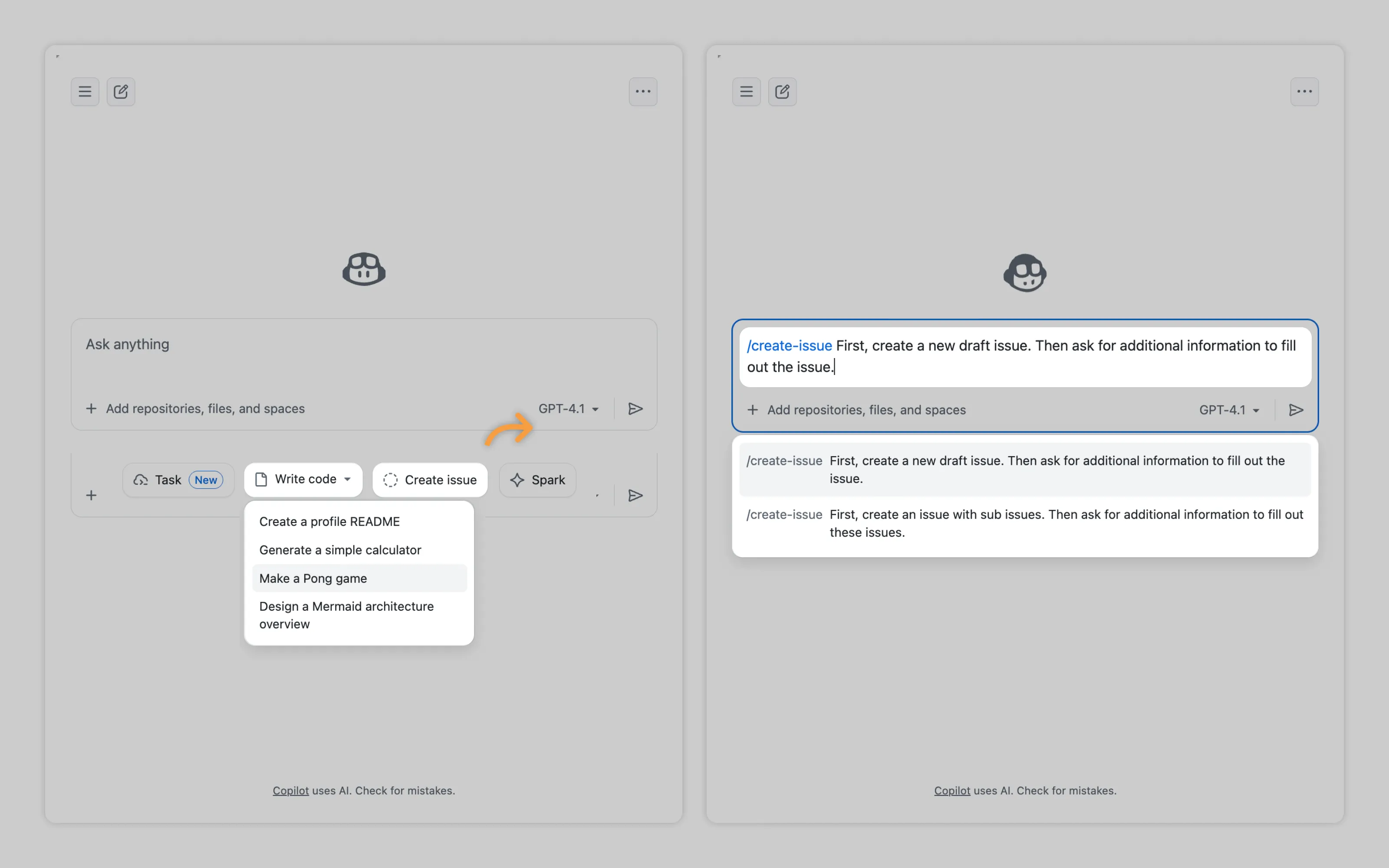
GitHub uses starter suggestions that include both quick actions like “Create a README” and templates. For example, when creating an issue (which still needs an open description), users can pick from two templates to get started faster.
2. Allow for multiple chats
To keep conversations on track, users should be able to start a new chat whenever they switch topics or tasks. Otherwise, old context will leak in and muddle new requests.
Along with creating new chats, users need access to old conversations. These can be stored indefinitely or removed after a set period. If you remove old chats, let users star conversations to preserve them.

Both Notion AI and VS Code include a clear new chat button and let users browse previous chats.
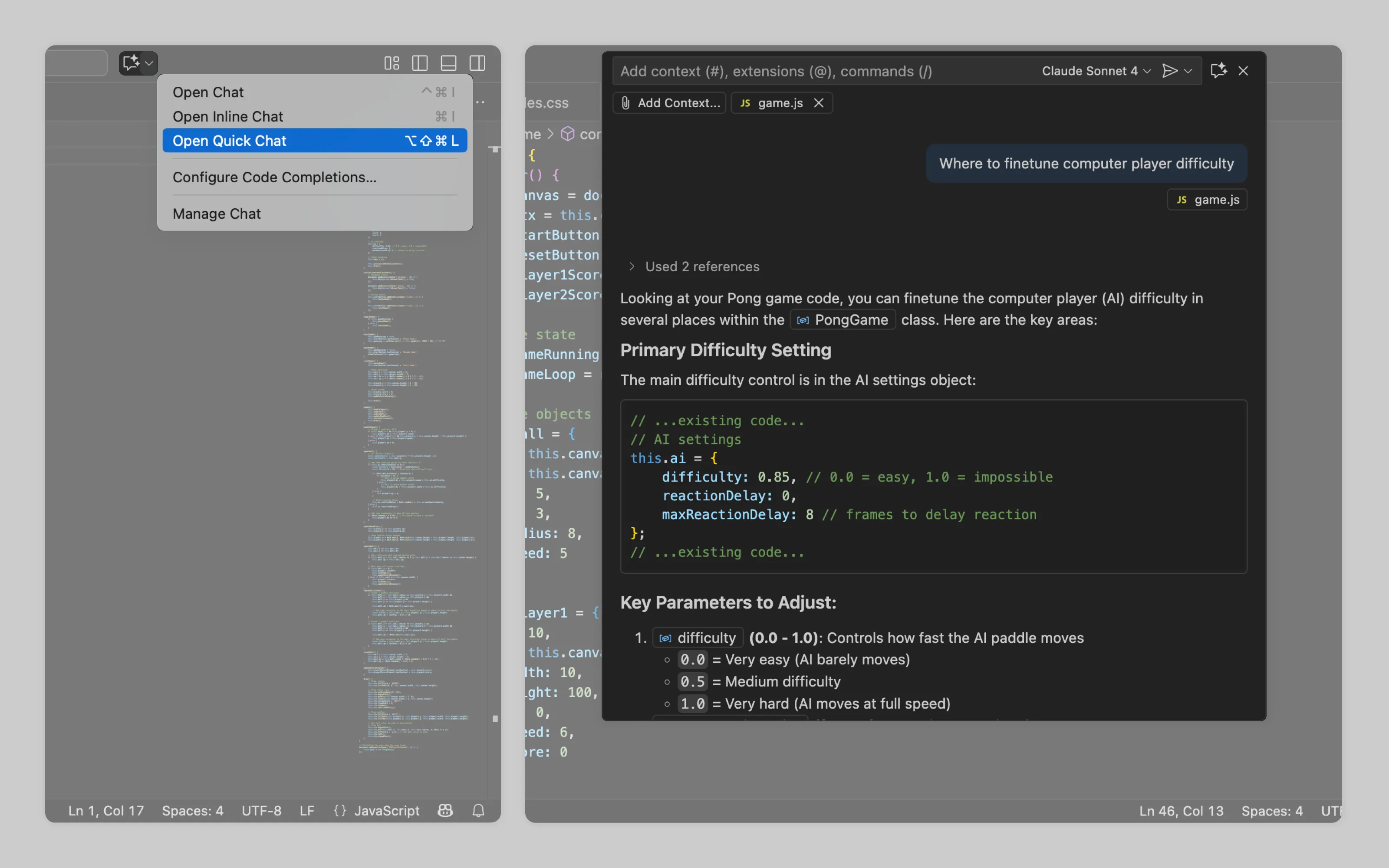
VSCode also added quick chats for short, throwaway questions. These are limited to text output and can’t edit the user’s workspace.
3. Efficiently or seamlessly provide context to AI
For cooperating with AI to be efficient user should waste as little time as possible on providing context to AI. User should never have to manually write or copy paste context if it's already within tool.
How you do this depends on where chat lives in the UI (more on AI placement):
Inline chat is usually opened to change part of the work. If the user selects something and opens inline chat, treat the selection as the default context.
Overlay chat often supports whatever sits underneath it. Use the current page as context by default. If the user wants to target a specific part, let them select it and use that selection as an extra reference (see example below).
Center-stage chat has no underlying content to grab. Let users quickly add context from the tool’s available resources. If the user and AI create an artifact together, that artifact should become the default context going forward.
Read more on gathering context in context pointing
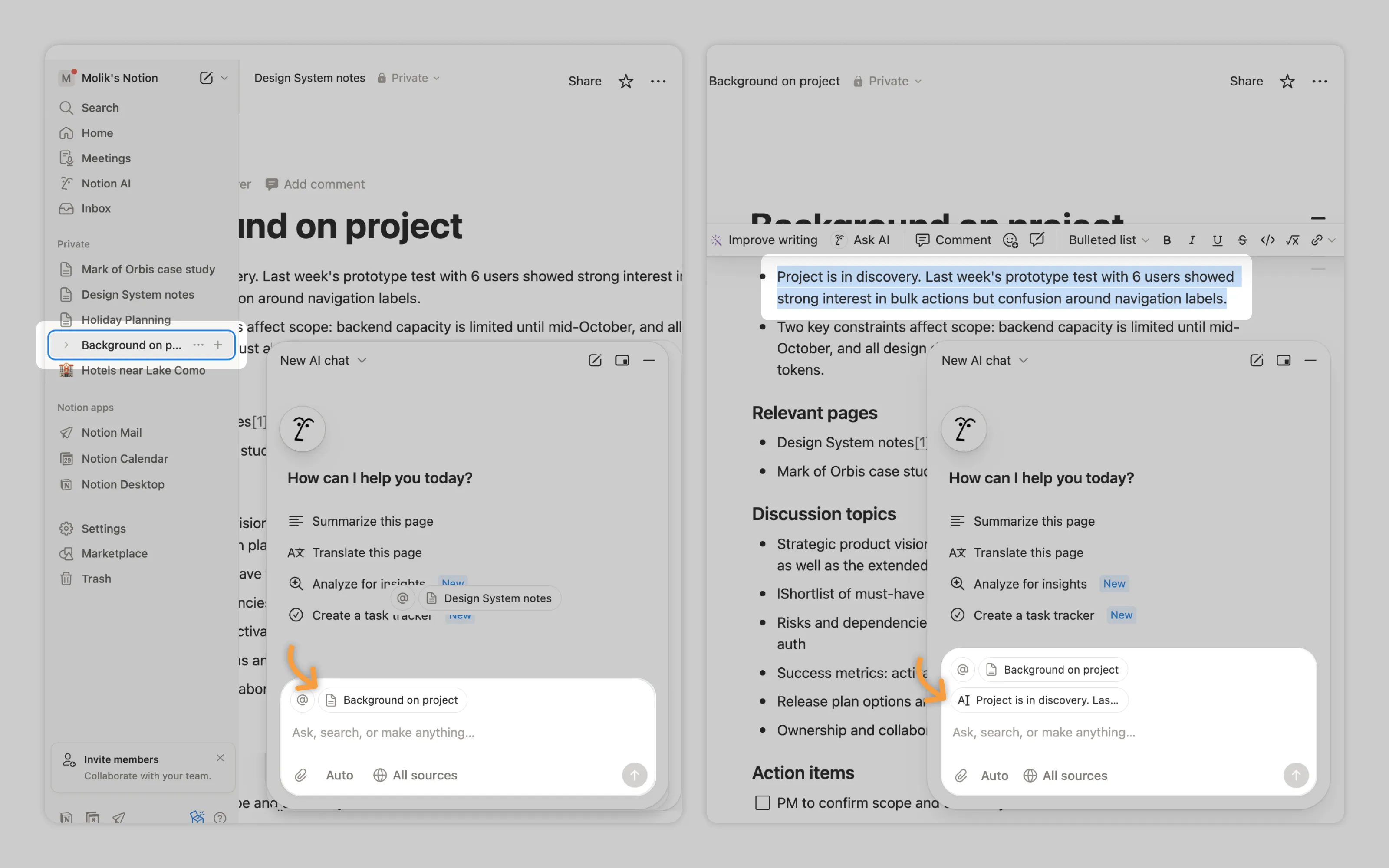
Notion uses the current page as context, and if text is highlighted it also shows that selection in the context area.
4. Show what AI is doing
Processing visibility prevents user anxiety and enables intervention. A frozen interface with no feedback creates doubt: Is it working? Did it crash?
With simple one-off tasks, a simple spinner animation is fine, while complex, multi-step operations should display AI's action stream and current focus. See Labor transparency to learn more
5. Let users see what AI is referring to
Good collaboration goes both ways. Users need context, and AI also needs a way to point back into the product. In AI responses, include links or pointers that take users to the exact part of the app or their work being discussed.
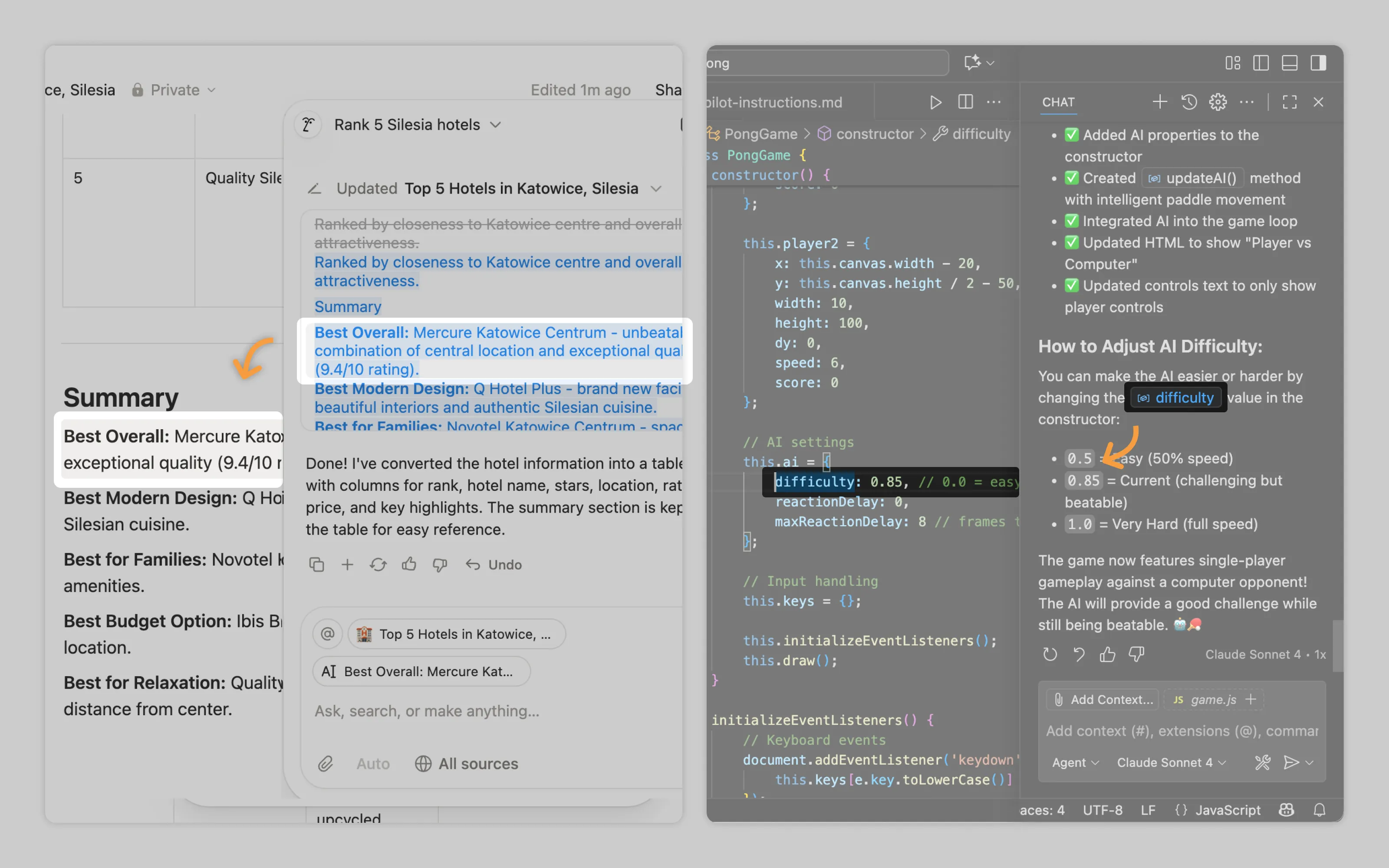
Notion AI and VS Code use clickable pointers that highlight the part of the workspace the AI is talking about.
6. Provide workbenches
If the user is creating an artifact from scratch with AI (typically when the AI chat is center stage and occupies the whole screen), provide a separate space for that artifact. This workbench separates the conversation from the actual output, letting users clearly review the artifact and track changes as they iterate with AI.
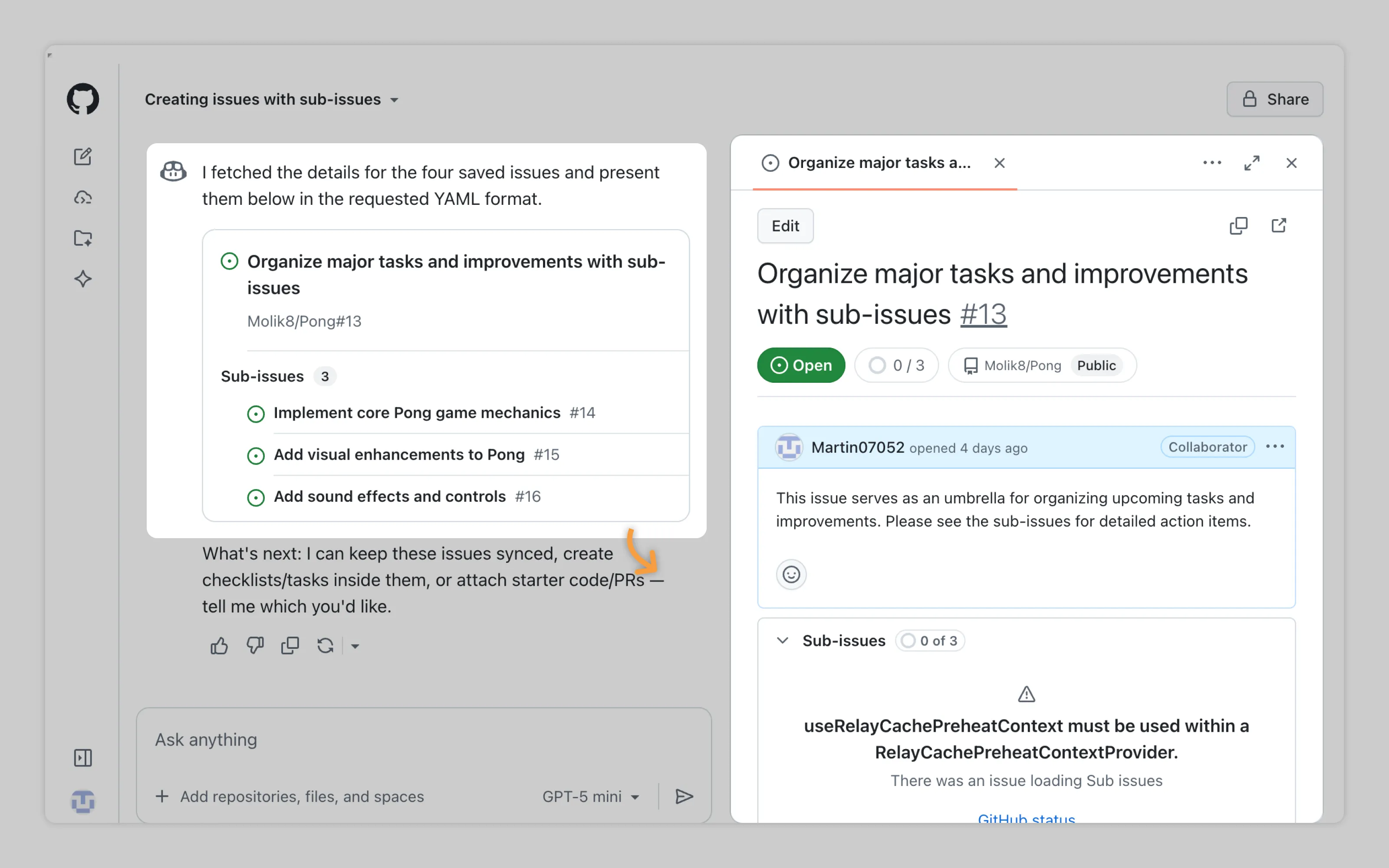
GitHub Copilot does this with a workbench that can show code, tickets, and other content. When the output is code, users can even run it in the workbench to see how it behaves.
7. Enable to accept, discard, or regenerate AI's changes
When AI modifies user work or pretty much any type of artifact, users need to see exactly what changed and control whether to keep or revert those changes. See Output management to learn more
8. Support exploration with backtracking and branching
When work with AI is exploratory, like ideation or creating new artifacts, the UI should facilitate experimentation.
Backtracking
Lets users rewind to any point in the conversation and submit different input while preserving all context up to that moment.
In this way when a workflow veers off course, users can return to the turning point and redirect without starting over. It's crucial that if AI made changes to user files, backtracking must revert those changes too.
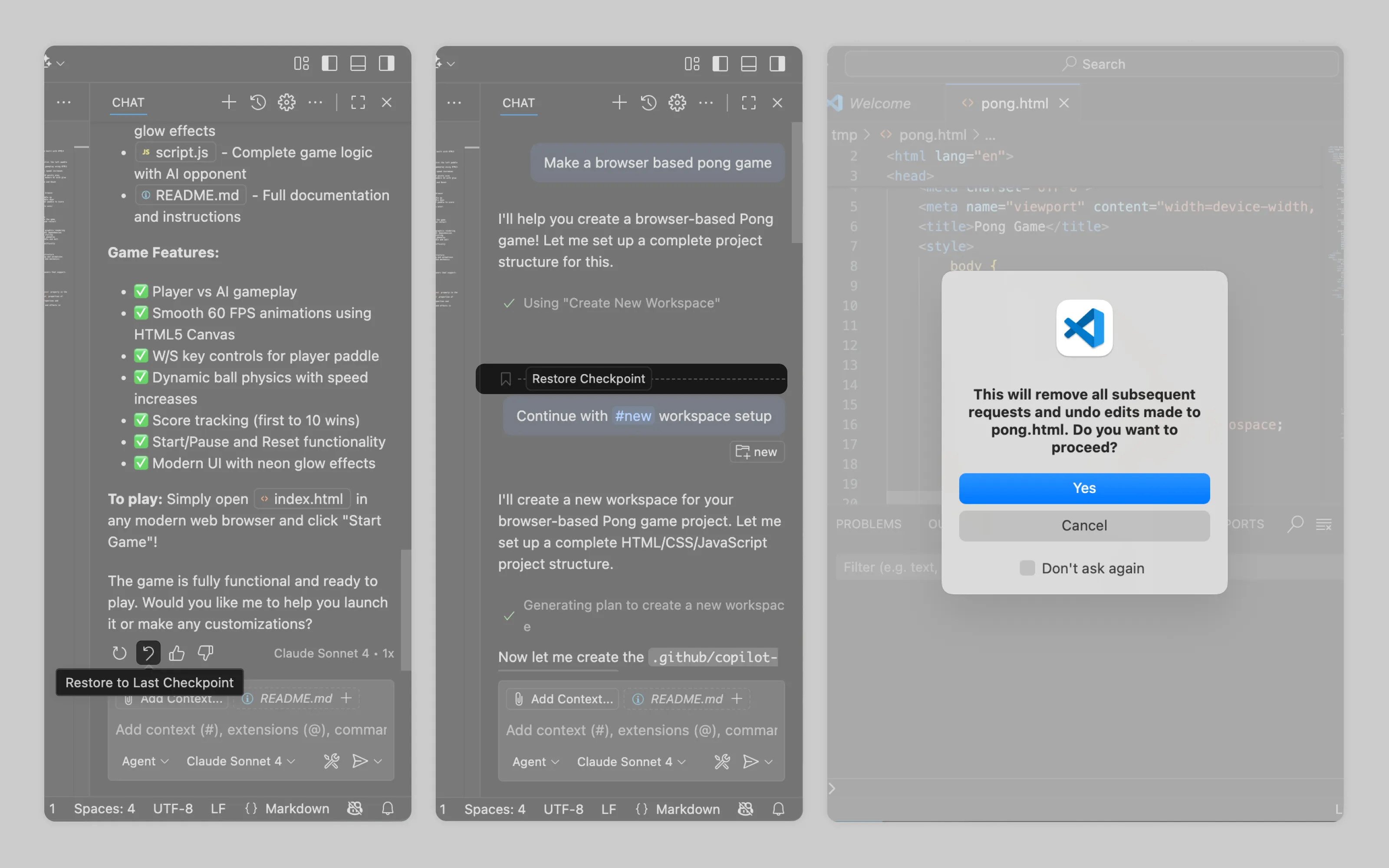
VSCode's "Restore Checkpoint" reverts both the conversation and all file modifications made after that checkpoint.
Branching
Branching creates parallel exploration paths users can pursue instead of committing to one direction. Branches spawn from two main actions:
Editing previous inputs creates alternate timelines (essentially backtracking with the ability to switch between versions)
Generating multiple variations lets users develop each option independently
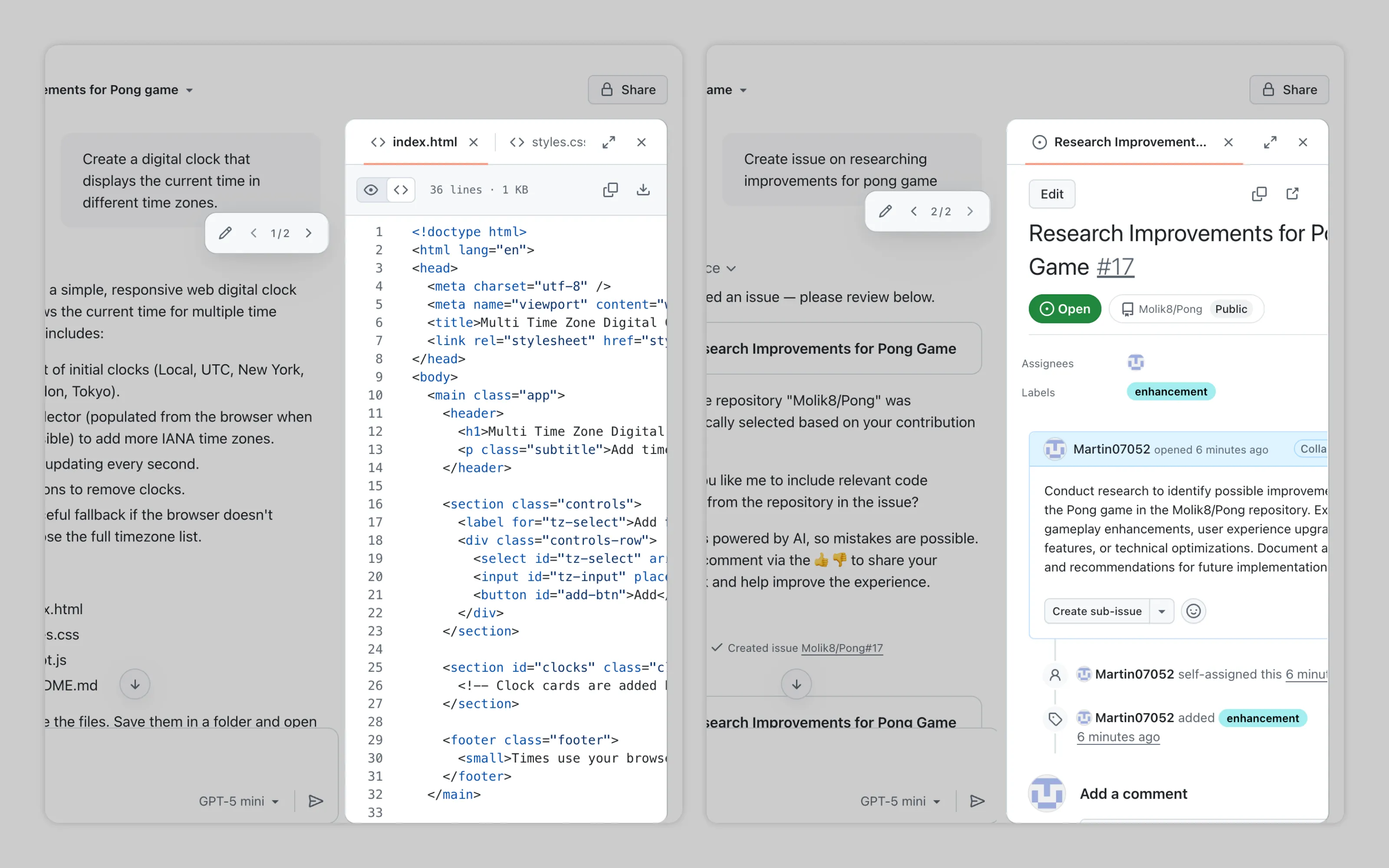
GitHub Copilot branches automatically when users edit past inputs. Since each branch produces different outputs, the workbench content updates to match the selected branch.
Or email us at hello@studiolaminar.com